
marker analysis
The marker analysis is concerned with timing information needed for the analysis of other channels, exporting values or event-related averaging. It reads timing information from a raw data file, either as a dedicated data channel, an associated file or as information from the data file header, and produces easily readable und modifyable time tables, stored as text-files. It can also be run without dedicated marker/trigger information, subdividing the length of the entire file in a certain number of segments, or fill up the file duration with segments of a fixed size. The latter is called “parametric” marker type, the former “standard” marker type.
Timing files
Timing files in EMEGS are needed for certain analysis types that require timing information (such as ERP/ERF, STARTLE, SPECTRAL, CROSSSPECTRAL, ICG), for exporting values and for timed data read-in. ERP/ERF requires a timing file and tag prepared before the ERP/ERF analysis is started. Other then by using the MARKER analysis, they can also be created in a text editor or a table calculation software like OpenOffice.Calc or Microsoft Excel.
Timing files must always live in the same directory as the raw data file they refer to. They must be named identically to the raw data file except the file extension which must be >> **.t ** <<.
So a varioport data file named TEX05402.vpd would have an associated timing file called TEX05402.t (these two files are included in the test data folder). The content of the timing file, which is a standard tab-delimited text file, is a 6 column table with one header row. Here you can see an example:
Condition Start End Duration SegmentNr ConditionNr
11 151.7480469 159.7636719 8.015625 1 1
21 169.2929688 176.3183594 7.0253906 2 1
31 185.9492188 193.9648438 8.015625 3 1
31 215.2246094 223.2402344 8.015625 4 2
21 232.2617188 239.2949219 7.0332031 5 2
11 249.3867188 257.4121094 8.0253906 6 2
31 266.5214844 273.5566406 7.0351562 7 3
21 283.96875 291.9941406 8.0253906 8 3
11 300.2832031 307.328125 7.0449219 9 3
31 317.2382812 325.2539062 8.015625 10 4
21 333.4726562 340.5078125 7.0351563 11 4
31 349.8886719 357.9042969 8.015625 12 5
Condition is usually the trigger/marker value, Start and End are time points relative to file start time in seconds. The Duration, SegmentNr and ConditionNr columns are included for readability only, and are otherwise ignored by the program. So when editing or creating timing files by hand in a text editor, excel or other program, you do not need to worry about keeping the these columns in order. In fact, you do not event need to have these columns at all.
Timing file subsections
Timing files can include several timing definitions to be used alternatively. This is needed for instance when data channels have different response windows, such as EDA (from around one to a few seconds after stimulus onset ) and EMG (within the first second after stimulus onset). A new section in a timing file starts with a line containing only the section name (or the section “tag”) and the colon-character. For instance the above file could look like this to hold a second timing set called “eda”:
Condition Start End Duration SegmentNr ConditionNr
11 151.7480469 159.7636719 8.015625 1 1
21 169.2929688 176.3183594 7.0253906 2 1
31 185.9492188 193.9648438 8.015625 3 1
31 215.2246094 223.2402344 8.015625 4 2
21 232.2617188 239.2949219 7.0332031 5 2
11 249.3867188 257.4121094 8.0253906 6 2
31 266.5214844 273.5566406 7.0351562 7 3
21 283.96875 291.9941406 8.0253906 8 3
11 300.2832031 307.328125 7.0449219 9 3
31 317.2382812 325.2539062 8.015625 10 4
21 333.4726562 340.5078125 7.0351563 11 4
31 349.8886719 357.9042969 8.015625 12 5
eda:
11 149.7480469 159.7480469 10 1 1
21 167.2929688 177.2929688 10 2 1
31 183.9492188 193.9492188 10 3 1
31 213.2246094 223.2246094 10 4 2
21 230.2617188 240.2617188 10 5 2
11 247.3867188 257.3867188 10 6 2
31 264.5214844 274.5214844 10 7 3
21 281.96875 291.96875 10 8 3
11 298.2832031 308.2832031 10 9 3
31 315.2382812 325.2382812 10 10 4
21 331.4726562 341.4726562 10 11 4
31 347.8886719 357.8886719 10 12 5
The first section is the (unnamed) default section and is processed if the section name is empty or not defined.
The MARKER analysis is meant to be run in batch mode, since it is a strictly rule-based process which requires no user interaction with the data. All analysis options can be configured beforehand. But since the analysis itself is quite fast, the process can be repeated with adjusted settings if the result is not as expected.
Moreover, the marker analysis also serves to modify existing timing information from previous analysis runs. This is done using the “modify” mode, whereas extracting information directly from the raw file is referred to as “standard” mode.
The marker configuration page on the configure-study-dialog for the standard mode is given here below.
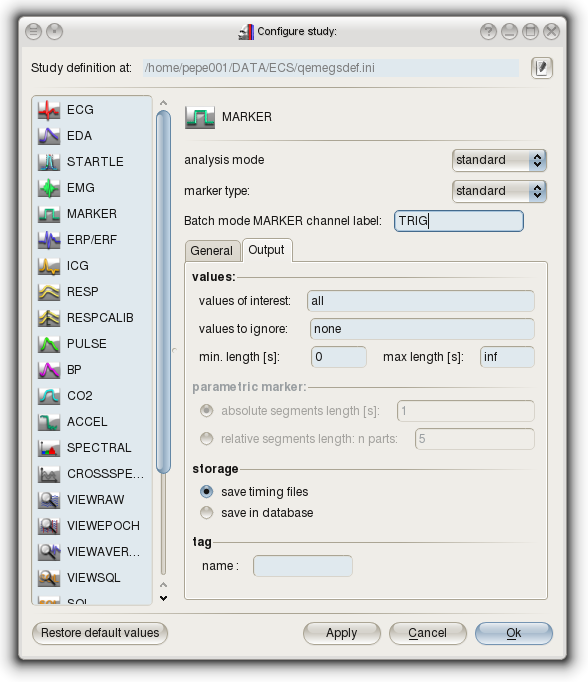
You can restrict the values EMEGS extracts from the data files by using the fields values-of-interest and values-to-ignore and also using a minimum or maximum event length.
The marker configuration pagen for the modify mode looks a little different:
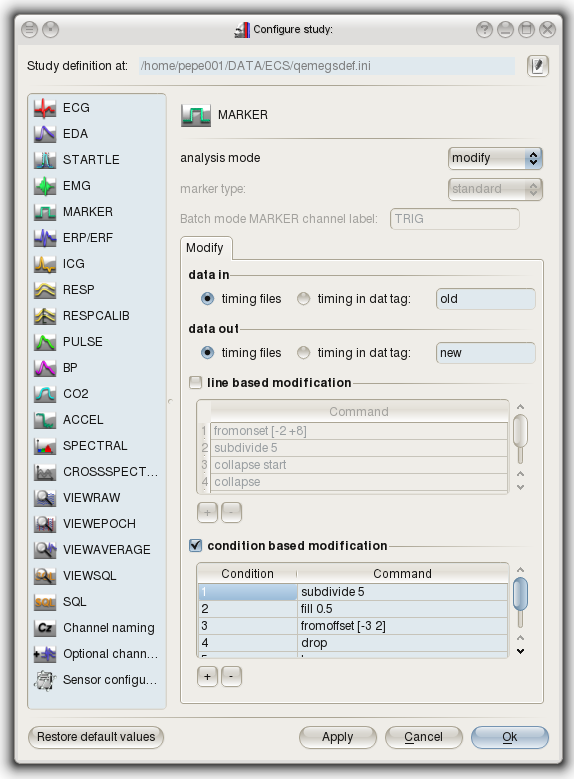
Modify mode reads one input event set, identified by the data in tag, and writes the result as the output event set identified by the data out tag. Use different tags to preserve the source event set. If a tag is left empty, EMEGS uses default. Select exactly one of the three modification tools: line based, condition based, or sequence based. Use the + and - buttons below a table to add or remove rules. The sequence-based table is below the line- and condition-based tables; scroll down in the Modify page if it is not visible.
The line- and condition-based tools accept the commands explained in the following table:
| Command | Explanation |
|---|---|
| subdivide n | subdivide the corresponding segment in n parts of equal length |
| fill n | fill the corresponding segment with segments of length n |
| collapse start | collapse segment from collapse start through collapse to collapse end into one bigger segment |
| collapse | see above |
| collapse end | see above |
| leave | leave the corresponding segment unchanged |
| drop | drop the corresponding segment |
| fromoffset [n m] | change the timing of the corresponding segment by adding n to its onset and replacing its offset by onset + m |
| fromonset [n m] | change the timing of the corresponding segment by replacing its onset by offset + n and adding m to its offset |
| recode n |
change the name of the corresponding segment/condition to n |
The condition based modification applies these commands depending on the condition value (trigger value), while the line based modification applies one command per input-event line. If the line-based table contains fewer commands than the input event set, the remaining events are copied unchanged.
Note: To apply a command to all conditions in a file, you can use the wildcard character * in the Condition column. Multiple conditions (but not all) per command are not yet supported, but will be in future releases.
Creating event sets with sequence-based modification
The sequence based modification tool creates consecutive, equally sized event sets within a condition. Add one row for each source condition and enter:
subblocks N
where N is a positive integer. For each configured condition, EMEGS takes its events in input order, divides them into N equally sized consecutive subblocks, and appends the one-based subblock number to the original condition code. For example, subblocks 3 applied to condition 12 creates conditions 121, 122, and 123. Events belonging to conditions that are not listed in the sequence table are copied unchanged.
The number of events in every configured condition must be divisible by N. EMEGS reports an error instead of producing an unequal split when a condition is absent, the command is invalid, or equal-sized subblocks cannot be formed. The analysis log reports the number of subblocks, events per subblock, and output-event count for each resulting condition.
This tool is useful for preparing event sets before ERP/ERF analysis, for example to compare early and late trials or to create balanced consecutive trial blocks. Select the output tag as the ERP/ERF timing tag after running MARKER; ERP/ERF consumes that prepared event set without applying further event selection or subdivision.
Combined with the data in tag and data out tag field, you can for instance use the leave command, to copy segments from one tag to another, or you might use the leave and drop commands to extract certain lines or conditions from one tag and store them in a different one.
With the commands given above the modify-mode offers you a set of very powerful tools to adjust your timing definitions according to your needs.
Timing defintions in the database
Rather than creating timing files, you can also choose to save all timing information in the database. Except for the way the information is stored, there is no difference between timing files or timing definitions in the database. Both mechanisms allow you to work with multiple tagged subsections for the same raw data file, and both mechanisms allow for modifications using the modify-mode of the MARKER analysis.
Keeping timing definitions makes it a little more difficult to edit or view the segment definitions, but keeps everything neatly together with the rest of the data. To delete timing definitions use the Delete data & segments dialog, which is described here.
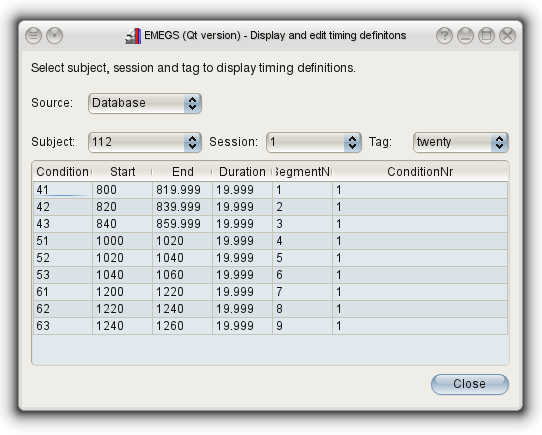
To view timing definitons in the database, use the Timing editor dialog. It is available in the “Tools” menu, in the “Database tools” submenu, and looks like this:
Technical Overview
What RunMARKERAnalysis() Does
The MARKER analysis (RunMARKERAnalysis() in QEmegsAnalysisThread) processes marker/trigger data to create timing segments for event-related analyses. It operates in two distinct modes:
STANDARD Mode
Extracts marker/trigger information from raw data files to create timing segments.
Two Analysis Types:
-
Standard Type - Detects marker changes in a dedicated marker channel:
- Reads marker channel data (first data trace)
- Detects value changes (rising/falling edges) using differential analysis
- Rounds marker values to specified precision to reduce noise
- Identifies marker positions (sample indices) and values
-
Parametric Type - Creates artificial timing segments without dedicated markers:
- Relative Segments: Divides entire recording into N equal parts
- Absolute Segments: Divides recording into fixed-duration segments (e.g., 10-second blocks)
- Optional pretrigger adjustment shifts segment start times
Filtering Pipeline:
After detection, markers are filtered based on:
- Values of Interest: Only keep markers with specified values (e.g., “11 21 31”)
- Values to Ignore: Exclude markers with certain values (e.g., “0 255”)
- Duration Constraints: Filter segments by minimum/maximum duration
Output:
- Creates
emegsNamedIntervalFsegments with start time, end time, and condition value - Stores segments in timing structure (
pDoc->theTiming) with specified tag - Saves to
.ttiming file (tab-delimited text) and/or database
MODIFY Mode
Transforms existing timing segments using powerful editing commands.
Three Modification Approaches:
- Line-Based: Apply command to each segment sequentially (by line number)
- Condition-Based: Apply command based on marker value (supports wildcard
*) - Sequence-Based: Divide the ordered events of selected conditions into equal consecutive subblocks and recode them
Modification Commands:
| Command | Effect | Example |
|---|---|---|
| drop | Remove segment completely | Drop unwanted trials |
| leave | Keep segment unchanged | Copy segments between tags |
| collapse | Merge consecutive segments into one | collapse start → collapse → collapse end |
| add[x,y] | Shift start by x sec, end by y sec | add[0.5,1.0] extends segment |
| fromonset[x,y] | New segment relative to onset | fromonset[0,2] creates 2-sec window from onset |
| fromoffset[x,y] | New segment relative to offset | fromoffset[-1,0] creates 1-sec window before offset |
| subdivide N | Split segment into N equal parts | subdivide 4 creates 4 sub-segments |
| fill X | Fill segment with X-second intervals | fill 0.5 creates 500ms epochs |
| recode N | Change condition value to N | Recategorize trials |
Sequence-based modification uses a separate command:
| Command | Effect | Example |
|---|---|---|
| subblocks N | Divide each selected condition into N equal-sized consecutive event sets and append the subblock number to its condition code | Condition 12 with subblocks 3 becomes 121, 122, and 123 |
Tags and Workflow:
- Input Tag: Source segments to modify (e.g., “default”)
- Output Tag: Destination for modified segments (e.g., “modified”)
- Enables complex workflows: extract specific trials, adjust timing windows, merge conditions, and create balanced consecutive event sets
Output:
- Updated timing structure with new/modified segment tag
- Saves to existing
.tfile (maintains all tags) and/or database
Implementation Details
Thread Safety:
- Runs in
QEmegsAnalysisThreadfor non-blocking execution - Uses mutex-protected logging and GUI communication
- Supports pause/stop via
PreProStopMutex
Data Structures:
emegsTimingSet: Container for all timing segmentsemegsNamedIntervalF: Individual segment (start, end, condition value)- Multiple tags per file for different analysis windows (e.g., “default”, “eda”, “emg”)
Resume Points:
- Case 0: Main analysis (detection or modification)
- Default: Saving to file/database
- Enables interruption and continuation for long processes