
ANOVA
TFCE or cluster-mass permutation correction
After completing a pointwise permutation ANOVA, open Statistical follow-up →
Permutation correction (cluster mass / TFCE). Select the observed F-statistic
file from the run’s observed/STATS folder. Both ERP/ERF results and native
wavelet time–frequency results are supported.
Choose Cluster mass to use the existing threshold-based method, or TFCE (F-statistic ANOVA) to combine statistic height and connected extent across all thresholds. TFCE does not use the cluster-forming alpha, minimum-neighbour or minimum-temporal-run controls. It uses the selected sensor neighbourhood and search region. Its F-ANOVA defaults are extent exponent E=2/3 and height exponent H=1; changes should be chosen before inspecting the results.
Set the Family-wise alpha and run the correction. Each location’s TFCE score is compared with permutation maxima across the selected sensor/time/frequency region. This corrects across locations for the selected ANOVA effect; it does not correct across multiple effects or repeated searches with different settings.
Results include a corrected-p map, the significant original F values, a table
of exact TFCE scores and a record of the settings. Files are saved under tfce/
in the ANOVA run folder. The result dialog groups significant locations into
regions for display. Peak location p (FWER) is the corrected p at that
region’s strongest TFCE location, not a p-value for the region as a whole.
The displayed boundaries do not establish exact effect onset or extent.
TFCE requires a complete permutation run and preserves its statistical design. Its validity still depends on appropriate permutations for that design.
Earlier R workflow examples
The examples below describe the older R-based workflow. Current EMEGS also supports native pointwise ERP/ERF and wavelet ANOVAs.
EEG and MEG studies are most often analyzed with a special kind of analysis of variance, that accounts also for within subject changes rather than only for between subject differences. EMEGS offers the possibility to calculate this kind of analysis directly, without exporting the data to a separate statistic software package. The following examples use region-of-interest summaries. The R-based workflow requires the R environment for statistical computing to be setup correctly, as described here.
1. Prepare data files and batch
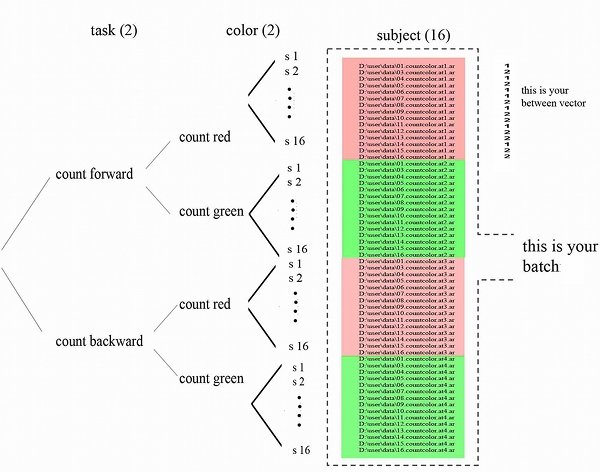
To run a repeated measures ANOVA, prepare your data as follows: each condition for every subject has to be saved as an SCADS average file. Every file has to have the same number of points and number of channels. You need a batch listing the paths of those files on your machine.This batch must be setup using the batch docking window and has to reflect the design of the planned analysis, that is, your paths have to be listed according to the hierarchy of the factors of your statistical design. The lowest level is always the subject factor, so you ’ll start with one cell for which all subjects average files are given. Beneath that, you list all subjects average files for the next cell etc. The subject order has to be identical in every cell, and you have to have equal number of subjects in every cell. Please note that the structure of the batchfile is identical, wether or not you have defined one or more between factor(s)!
Cells need to be ordered from lowest hierarchy position of the factor to highest hierarchy position. For instance, consider a 2x2x2 design with the factors ’task’ (count forward vs count backward) , ‘color’ (count red squares vs. count green squares) and ‘gender’. Thus, your batch for 16 subjects for this design has to have the following form:
2. Set Interval and Sensor group settings
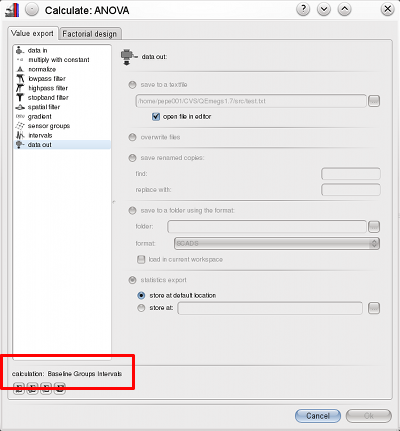
Select from the Calculate menu ANOVA::Run ANOVA, and on the value export page of the displayed dialog, make sure that the displayed summary of the calculations is correct (includes Baseline, Group and Intervals):
3. Enter the factorial design on the Calculate: ANOVA dialog
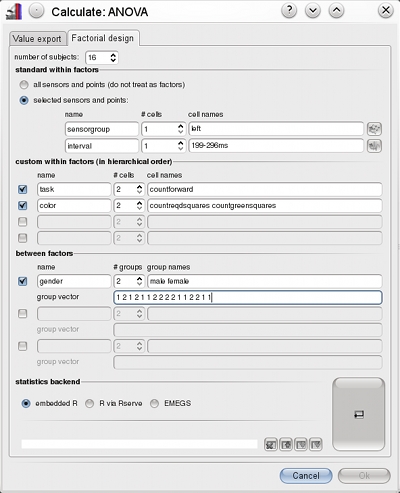
Then enter your statistical design and second page as shown below:
4. Set the design
Push the large set factorial design button on the bottom right corner, to have EMEGS check the design correspondance with the current batch. If inconsistencies are found, you will get an error message, otherwise, the Ok button is enabled, which you push to start the ANOVA.
5. Check Export- and ANOVA-log
During the value export, EMEGS writes messages to the log docking window. If the log window is not visible